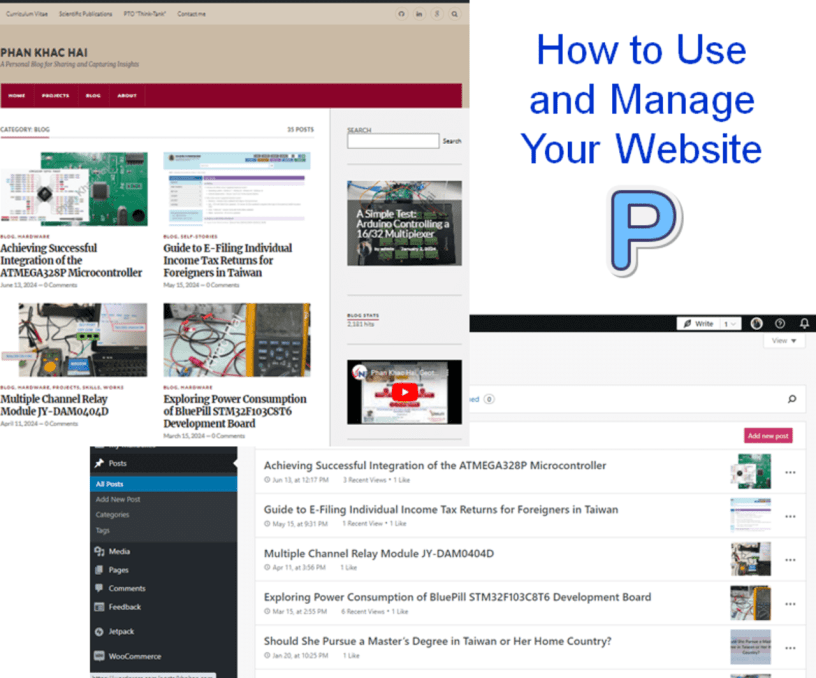
Managing a website on your own can be a rewarding but challenging task. This guide will provide you with detailed steps to ensure your website runs smoothly and efficiently. I’ll cover everything from structuring content correctly, optimizing images, and publishing content, to handling the administrative tasks that keep your site functional.
1. Structuring Your Website Content
Properly structuring your website content is crucial for both user experience and SEO. Here’s how to structure it effectively:
Posts:
- Regular articles or blog entries.
- Can be categorized and tagged for better organization.
- Examples:
- News updates
- Tutorials
- Reviews
Pages:
- Static content like About Me, Contact, Terms of Service, etc.
- These pages do not change frequently and provide essential information to your visitors.
Categories:
- Groups of related posts.
- Helps users find content easily.
- Examples:
- News
- Tutorials
- Reviews
Menu:
- Navigation elements that help users access different parts of the website.
- Should be intuitive and easy to use.
2. Image Formatting Tips
Properly formatting and optimizing images before uploading them to your website can save storage space and bandwidth. Follow these detailed steps:
- Resize Images:
- Visit Image Resizer and resize images to a width of 1280px (height will adjust automatically).
- Download the resized image to your computer.
- Name Files Correctly:
- Avoid using special characters or spaces.
- Example:
- Incorrect:
file làm thử.jpg - Correct:
211118_file-post_01.jpg
- Incorrect:
- Optimize Images:
- Go to TinyJPG, upload the resized image, and download the optimized version.
- This reduces the file size without significant loss of quality.
- Use Image Editing Software:
- Tools like Photoshop or SnagEditor can be used for additional editing if needed.
- Banner Size:
- Ensure banner images are sized at 750×420 px.
Note: Avoid uploading original, unoptimized images to the website, as they can be large and consume unnecessary storage and bandwidth.
3. How to Publish a Post
Publishing a post involves several steps to ensure it’s well-presented and categorized correctly. Here’s a detailed step-by-step guide:
- Log in to Your Content Management System (CMS):
- Access the CMS with your admin account.
- Navigate to Posts:
- Go to Dashboard > Posts > All Posts.
- To edit an existing post, hover over the post and click
Edit. - To create a new post, click
Add New.
- Add New Post:
- Enter the title in the
Add Titlefield. - Use the
Paste as Textoption to paste content from a Word document into the Editor. This avoids formatting issues.- Ensure that
Paste as Textis selected; otherwise, the website will retain the original Word formatting, which can cause layout issues.
- Ensure that
- Select Categories:
- In the
Categoriespanel on the right, select the relevant categories for the post. - You can select multiple categories if the post fits into more than one category.
- Upload Featured Image:
- In the
Featured Imagepanel, upload an optimized image to be used as the post’s thumbnail. - This image will appear as a thumbnail on the homepage and category pages.
- Preview the Post:
- Click
Previewin thePublishpanel to review the post before publishing. - Check for any formatting errors, broken links, or other issues.
- Publish the Post:
- Once you’re satisfied with the preview, click
Publishto make the post live. - You can also schedule the post to be published at a later date and time.
4. Additional Tips for Managing Your Website
As the sole administrator, here are some extra tips to help you manage your website efficiently:
- Regular Backups: Regularly back up your website to avoid losing data. Many plugins can automate this process for you.
- Update Your CMS and Plugins: Keep your CMS and all plugins up to date to ensure security and access to the latest features.
- Monitor Website Performance: Use tools like Google Analytics and Search Console to monitor your website’s performance and identify areas for improvement.
- SEO Optimization: Ensure your content is optimized for search engines. Use SEO plugins to help with this task.
- Engage with Your Audience: Respond to comments and engage with your audience to build a community around your website.
By following these guidelines, you’ll be able to manage your website effectively, ensuring it remains user-friendly, efficient, and high-quality. Here’s a recap of key points:
- Structure your content for better organization and user experience.
- Optimize images to save storage space and bandwidth.
- Follow detailed steps to publish posts correctly.
- Regularly back up your website and keep it updated.
- Monitor performance and engage with your audience.
Managing a website on your own can be challenging, but with the right tools and practices, you can ensure your website’s success.
 PHAN KHAC HAI