
Endnote is a powerful reference management tool that can save researchers and students countless hours when writing academic papers. However, if it has been a while since you last used it, getting back into the swing of things can be a bit challenging. In this article, I will provide a step-by-step guide to help you quickly reacquaint yourself with Endnote, making your citation and reference management tasks a breeze. Feel free to use this guide as a reference for your future work or share it with others who may find it helpful.
Step 1: Install the software: I share the software here for everyone who needs it. It’s free, of course! You can install it as normally installing other software.

Step 2: Add the references in your library: I think you can search on the Internet how to do that. But my way is very easy, first, you download the endnote file from the google scholar page then open that file. It will be automatically added to your library of Endnote.

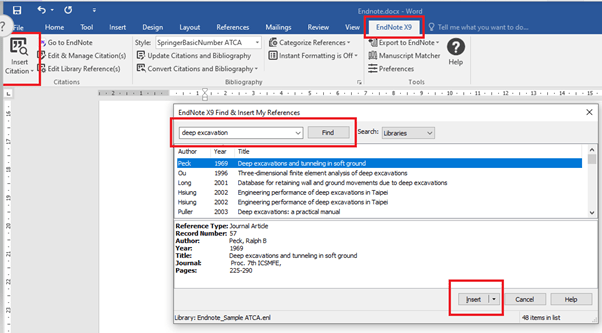
Step 3: Select the reference to cite in your paper: It’s very easy with one click from the insert citation option. Select your target reference and cite it.
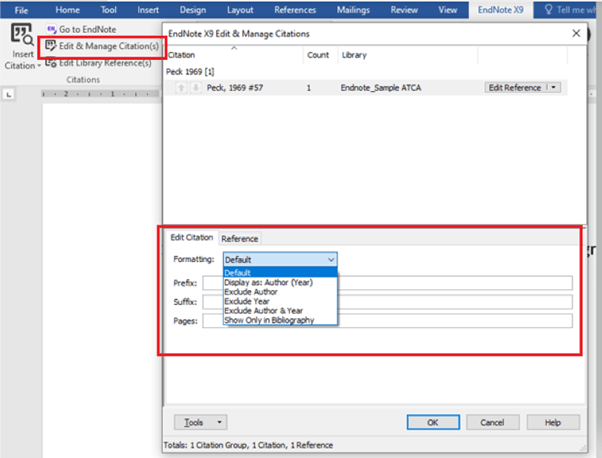
Step 4: Edit the citation: This step is very important because you can format the citation styles you want.
Step 5: Select the style of references: there are many types of reference styles that you can select or create a new one here. It depends on what style you are required to use for your paper then modify the appropriate format in two sections namely citations and bibliography.
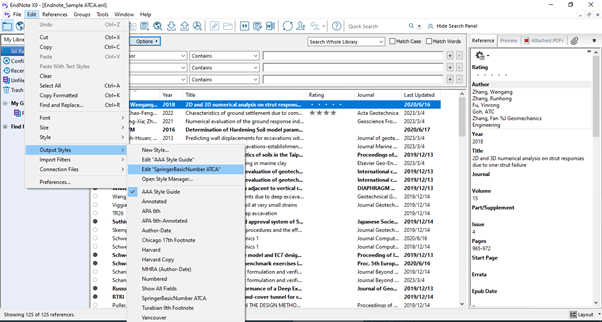
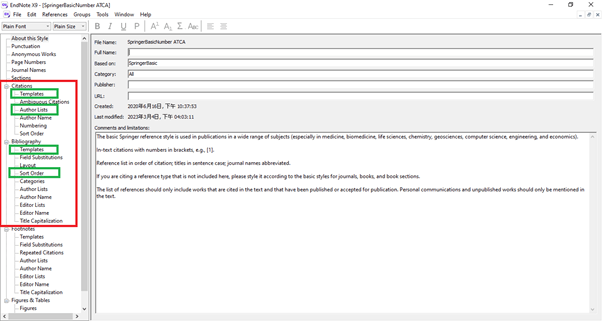
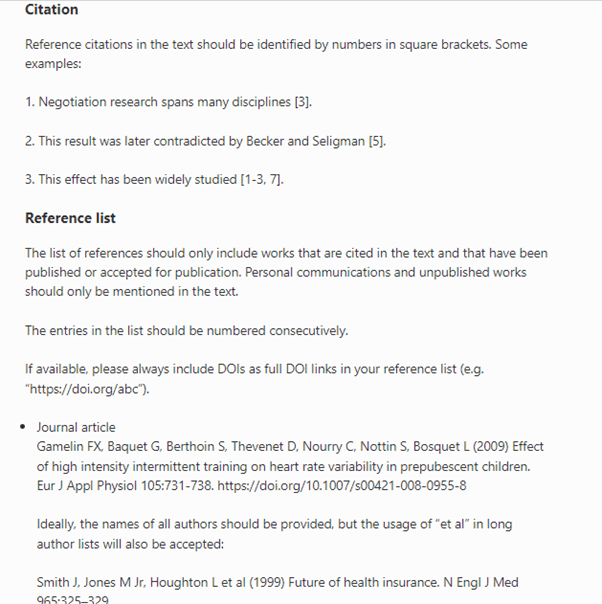
In this step, I selected a simple example for you on how to choose the correct style of reference. The requirements of reference from the Journal of Geotechnical ATCA include (1) citation and (2) reference list as shown below.
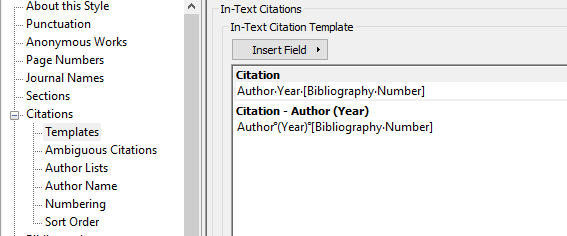
As for citation requirements, users can go to the citations option in Endnote and edit “Template” and “Author Lists” as showing in the figure below

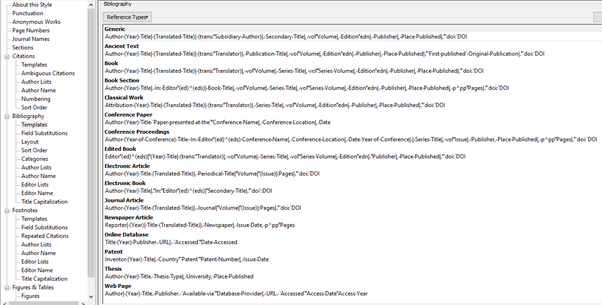
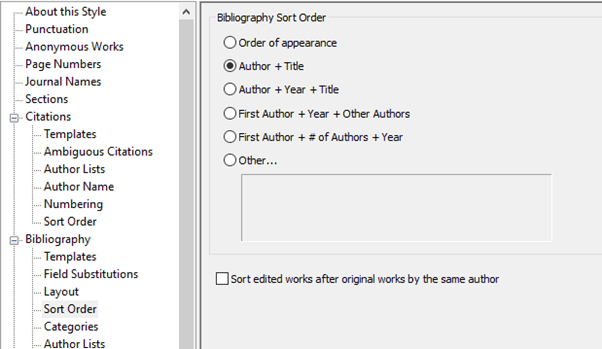
With regard to the reference list, select the Bibliography and modify the “Templates” and “Sort Order”. Modify the reference styles as shown below.
Last step: you can easily update your citation every time you need by clicking “Update citation and bibliography”. Stop automatically by turning off the “instant formatting”. Those options are shown below:

Congratulations! You have successfully refreshed your knowledge of Endnote and are now equipped to efficiently manage citations and references for your academic papers. With this step-by-step guide, you can confidently use Endnote for future projects. Should you encounter any questions or difficulties, don’t hesitate to leave a comment below or contact me directly for assistance. Happy writing, and have a productive day!
 PHAN KHAC HAI